19 May 2013

422. Set up ACML on linux

These are the same instructions as in post 409B. However, I've decided it's better to do the posts the unix/linux way -- have the do one thing, and do that thing well. It makes life easier for me if I can simply refer back to more modular posts.

Anyway, here's how to set up the ACML libs on debian.

ACML
Download both the 'regular' and the int64 gfortran packages from AMD:
http://developer.amd.com/tools-and-sdks/cpu-development/amd-core-math-library-acml/acml-downloads-resources/#download

tar xvf acml-5-3-1-gfortran-64bit-int64.tgz
tar xvf acml-5-3-1-gfortran-64bit.tgz
sh install-acml-5-3-1-gfortran-64bit-int64.sh
Where do you want to install ACML? Press return to use the default location (/opt/acml5.3.1), or enter an alternative path. The directory will be created if it does not already exist. > /opt/acml/acml5.3.1
sh install-acml-5-3-1-gfortran-64bit.sh
Where do you want to install ACML? Press return to use the default location (/opt/acml5.3.1), or enter an alternative path. The directory will be created if it does not already exist. > /opt/acml/acml5.3.1
You'll get something like this:
/opt/acml/acml5.3.1
|-- Doc
|-- gfortran64
|-- gfortran64_fma4
|-- gfortran64_fma4_int64
|-- gfortran64_fma4_mp
|-- gfortran64_fma4_mp_int64
|-- gfortran64_int64
|-- gfortran64_mp
|-- gfortran64_mp_int64
`-- util

where
*  fma4 is for cpus with FMA4 support (use util/cpuid to check)
*  int64 is for double-precision float (integer*8) I think
*  mp is for openmp. For MPI do not use the _mp_ libraries!

Pick your library/ies and add them to the LD_LIBRARY_PATH, e.g.:
echo 'export LD_LIBRARY_PATH=$LD_LIBRARY_PATH:/opt/acml/acml5.3.1/gfortran64_int64/lib' >> ~/.bashrc
source ~/.bashrc

421. NWChem 6.3 on ROCKS 5.4.3/CentOS 5.6

Update 23 May 2013: The execution times are pretty much the same as for 6.1.1 with a new patch. I've updated the instructions below to incorporate this new patch (http://www.nwchem-sw.org/images/Iswtch.patch.gz)

Update 21 May 2013:
The execution times can be improved considerably by setting
ARMCI_NETWORK=SOCKETS

They are still ca 30% longer than 6.1.1 though due to slower SCF convergence.
See http://www.nwchem-sw.org/index.php/Special:AWCforum/st/id834/Nwchem_6.3_running_2-5_times_slo....html

UPDATE 20 May 2013:
Nwchem 6.3 is very slow compared to 6.1.1. A six-core run (out of eight cores available) was 121 s using 6.1.1 but 254 seconds on 6.3!

I observed this on debian as well: 6.3 on debian is five times slower (190s vs 40 s for example at 8 cores in http://verahill.blogspot.com.au/2013/05/414-frequency-vs-cores-crude.html) than 6.1.1. Not sure why that is.

Original:
NWChem 6.3 is out now. Here's how to build it on ROCKS 5.4.3 (based on Centos 5.6) for CPU-based calculations (currently only CCSD(T) can take advantage of GPU/CUDA anyway).

To build on debian, see http://verahill.blogspot.com.au/2013/05/424-nwchem-63-on-debian-wheezy.html

This assumes that you've got a proper build environment (gcc, fortran, openmpi) installed.

Openblas:
I've added all users who do computations to the group compchem.
sudo mkdir /share/apps/openblas
sudo chown $USER:compchem /share/apps/openblas
cd ~/tmp
wget http://nodeload.github.com/xianyi/OpenBLAS/tarball/v0.1.1
tar xvf v0.1.1
cd xianyi-OpenBLAS-e6e87a2/
wget http://www.netlib.org/lapack/lapack-3.4.1.tgz
make all BINARY=64 CC=/usr/bin/gcc FC=/usr/bin/gfortran USE_THREAD=0 INTERFACE64=1 1> make.log 2>make.err

make PREFIX=/share/apps/openblas install
cp lib*.*  /share/apps/openblas/lib
sudo chmod 755 /share/apps/openblas -R

For later use with nwchem and ecce, add /share/apps/openblas/lib to /etc/ld.so.conf and do
sudo ldconfig

Put
export LD_LIBRARY_PATH=$LD_LIBRARY_PATH:/share/apps/openblas/lib
in ~/.bashrc and/or queue files.

NWChem
I've added all users who do computations to the group compchem.
sudo mkdir /share/apps/nwchem/
sudo chown $USER:compchem /share/apps/nwchem/

cd /share/apps/nwchem
wget http://www.nwchem-sw.org/download.php?f=Nwchem-6.3-src.2013-05-17.tar.gz
tar xvf Nwchem-6.3-src.2013-05-17.tar.gz 
cd nwchem-6.3-src.2013-05-17/
cd src/
wget http://www.nwchem-sw.org/images/Iswtch.patch.gz
gzip -d Iswtch.patch
patch -p0 < Iswtch.patch
cd ../
export LARGE_FILES=TRUE
export TCGRSH=/usr/bin/ssh
export NWCHEM_TOP=`pwd`
export NWCHEM_TARGET=LINUX64
export NWCHEM_MODULES="all python"
export PYTHONHOME=/opt/rocks
export PYTHONVERSION=2.4
export USE_MPI=y
export USE_MPIF=y
export USE_MPIF4=y
export MPI_LOC=/opt/openmpi
export MPI_INCLUDE=/opt/openmpi/include
export LIBRARY_PATH=$LIBRARY_PATH:/opt/openmpi/lib:/share/apps/openblas
export LIBMPI="-lmpi -lopen-rte -lopen-pal -ldl -lmpi_f77 -lpthread"
export BLASOPT="-L/share/apps/openblas/lib -lopenblas -lopenblas_nehalem-r0.1.1 -lopenblas_nehalemp-r0.1.1"

export ARMCI_NETWORK=SOCKETS

cd $NWCHEM_TOP/src
export FC=gfortran
make clean
make  nwchem_config
make  FC=gfortran
cd ../contrib
./getmem.nwchem
 sudo chmod 755 /share/apps/nwchem/nwchem-6.3-src.2013-05-17 -R

Create a default.nwchemrc in /share/apps/nwchem
nwchem_basis_library /share/apps/nwchem/nwchem-6.3-src.2013-05-17/src/basis/libraries/ ffield amber amber_1 /share/apps/nwchem/nwchem-6.3-src.2013-05-17/src/data/amber_s/ amber_2 /share/apps/nwchem/nwchem-6.3-src.2013-05-17/src/data/amber_x/ amber_3 /share/apps/nwchem/nwchem-6.3-src.2013-05-17/src/data/amber_q/ amber_4 /share/apps/nwchem/nwchem-6.3-src.2013-05-17/src/data/amber_u/ amber_5 /share/apps/nwchem/nwchem-6.3-src.2013-05-17/src/data/custom/ spce /share/apps/nwchem/nwchem-6.3-src.2013-05-17/src/data/solvents/spce.rst charmm_s /share/apps/nwchem/nwchem-6.3-src.2013-05-17/src/data/charmm_s/ charmm_x /share/apps/nwchem/nwchem-6.3-src.2013-05-17/src/data/charmm_x/
and put symmlinks to it in the users' home directories, e.g.
cd ~
ln -s /share/apps/nwchem/default.nwchemrc .nwchemrc

17 May 2013

420. Setting up a FreeBSD virtual machine

I don't have any free hardware to make a proper install on at the moment, but have a few things I'd like to try out on Free BSD (basically -- how similar/different is the build process from e.g. debian) so I've decided to set up a virtual machine to play around with.

Not difficult, but someone else might benefit from the screenshots as well.


1. Get the installation medium:
Go to ftp://ftp.freebsd.org/pub/FreeBSD/releases/amd64/amd64/ISO-IMAGES/9.1/ and download what you need. Interestingly there's an image meant for USB sticks as well.

I went for the CD iso which is around 686 Mb:
cd ~/Downloads
wget ftp://ftp.freebsd.org/pub/FreeBSD/releases/amd64/amd64/ISO-IMAGES/9.1/FreeBSD-9.1-RELEASE-amd64-disc1.iso


2. Set up the virtual machine


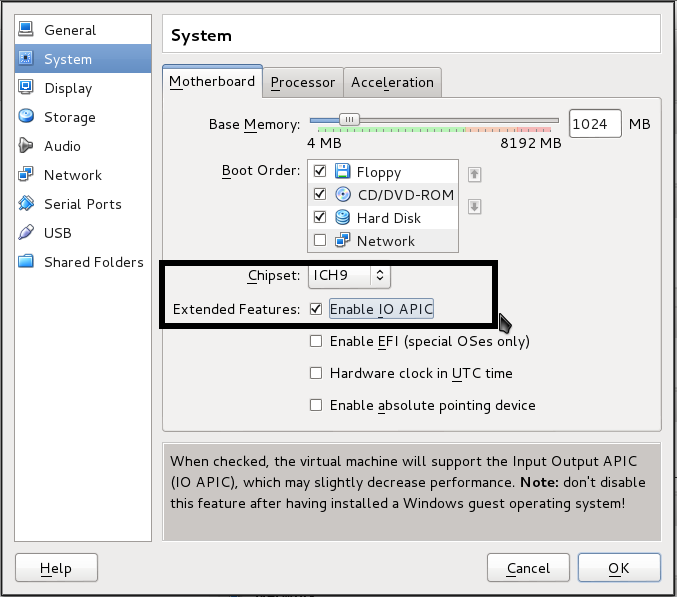
 You need to change the CPU type from the default (http://forums.freebsd.org/showthread.php?t=25032):


If you don't change the CPU type you'll encounter the following on boot:


3. Start the installation


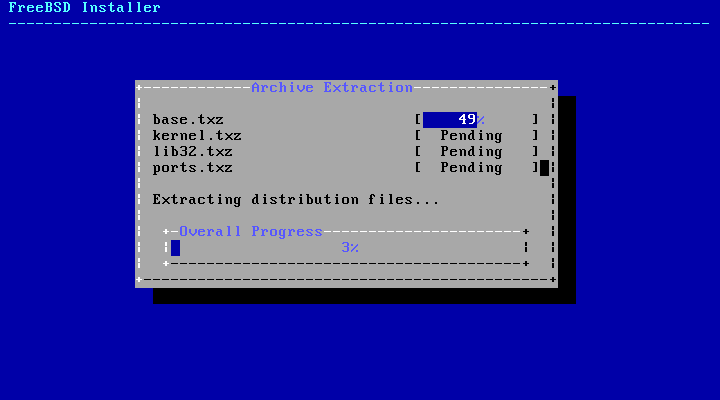
4. Final touches
I don't want to have to launch and work in VM via the virtualbox GUI. Instead, we want to launch the VM from the command line, and log in via ssh. I've covered this in part before in post 94. We set up port forwarding in the Virtualbox GUI:


Start the VM
VBoxHeadless -s FreeBSD
Oracle VM VirtualBox Headless Interface 4.2.12 (C) 2008-2013 Oracle Corporation All rights reserved. VRDE server is listening on port 3389.

Wait ca 30-60 seconds for the VM to boot (you won't get any feedback), then
ssh verahill@localhost -p 6534
Password: Last login: Fri May 17 13:50:03 2013 FreeBSD 9.1-RELEASE (GENERIC) #0 r243825: Tue Dec 4 09:23:10 UTC 2012 Welcome to FreeBSD! Before seeking technical support, please use the following resources: o Security advisories and updated errata information for all releases are at http://www.FreeBSD.org/releases/ - always consult the ERRATA section for your release first as it's updated frequently. o The Handbook and FAQ documents are at http://www.FreeBSD.org/ and, along with the mailing lists, can be searched by going to http://www.FreeBSD.org/search/. If the doc package has been installed (or fetched via pkg_add -r lang-freebsd-doc, where lang is the 2-letter language code, e.g. en), they are also available formatted in /usr/local/share/doc/freebsd. If you still have a question or problem, please take the output of `uname -a', along with any relevant error messages, and email it as a question to the questions@FreeBSD.org mailing list. If you are unfamiliar with FreeBSD's directory layout, please refer to the hier(7) manual page. If you are not familiar with manual pages, type `man man'. Edit /etc/motd to change this login announcement. $

5. Basic set-up of FreeBSD
I'm a sudo-addict, and I can't live without vim. Log in as ROOT:
pkg
The package management tools is not yet installed on your system. Do you want to fetch and install it now ? [y/N]: Y Bootstrapping pkg, please wait.
pkg update
Updating repository catalogue
pkg_add -r sudo vim echo 'verahill ALL=(ALL) ALL' >> /usr/local/etc/sudoers

If you want a graphical environment, you can follow this page: http://www.freebsd.org/doc/en/books/handbook/x11-wm.html
I installed xfce:
pkg_add -r xfce4
pkg_add -r xorg
echo "/usr/local/bin/startxfce4" > /home/verahill/.xinitrc
chown verahill:verahill /home/verahill/.xinitrc
echo 'hald_enable="YES"' >> /etc/rc.conf
echo 'dbus_enable="YES"' >> /etc/rc.conf


Restart and log in. You can launch XFCE with startx, which opens XFCE at tty9
Note that the terminal emulator didn't work properly out of the box.

sudo pkg_add -r virtualbox-ose-additions
sudo pw groupmod wheel -m verahill
sudo su
#echo 'vboxguest_enable="YES"' >> /etc/rc.conf
#echo 'vboxservice_enable="YES"' >> /etc/rc.conf
sudo shutdown -r now


Links to this post:
http://forum.opensource-srbija.org/topic/1870-freebsd-u-virtual-box-u/