24 December 2024

679. Two common issues with Gaussview on linux

My work computer hasn't had a fresh installation of linux since around 2010 -- I've continously upgraded it to newer versions of debian, and have occasionally moved it to bigger harddrives using dd.

I finally felt there was too much legacy stuff, so I did a fresh installation of debian 12.5, and had to set up gaussian and gaussview again.

Gaussian (16.C01) is pretty straightforward, but gaussview (6.0) was causing issues. Unfortunately I didn't document the error messages.

The causes of either of the two issues were not obvious, to say the least. Based on their causes, these issues should also be quite common.


Issue 1. On start it says "Failed to read fragment file: /opt/gaussian/gv/data/elements/fragments/tet.frg"

Needless to say, the file is there and the permissions are correct.

The source of the issue is (suprisingly) due to the LANG settings. If I do an installation from the live DVD of debian 12.5 and install from a live debian instance, while picking a location other than the US, I get all sorts of fun settings in the /etc/default/locale file. If I boot directly into the installer, I only get the following in the file:

LANG="en_US.UTF-8"
LANGUAGE="en_US:en"


I don't know exactly what is causing the issue, or how to remedy it from an already installed version of debian, but try changing /etc/default/locale to have LANG="en_US.UTF-8" and run locale-gen.

Here's an example of someone else having a similar issue.

Issue 2. gv keeps segfaulting and/or hanging when opening a .chk or .log file.

Gaussview segfaults when opening files (especially .log or .chk), or you get an endless sequence of prompts asking you whether to wait or close gaussview while it's opening the file (and according to top it is doing something).

The cause of the issue was .... nouveau! Or so it seems. Others seem to have had the exact opposite experience.

It worked fine (for me) with either radeon (HD 7870) or nvidia (rtx3050) on two systems.

On a third system (nvidia quadro K620) I started removing nouveau using smxi, but only ran it once. So lsmod doesn't show either nvidia or nouveau as being loaded, while lspci -k|grep -A 3 -i vga shows that nouveau is loaded. Yet gv runs fine now, but not before.


05 December 2024

678. Steam and cross-platform play, Linux vs Windows, Halo:MCC and Ghost Recon Wildlands

 I use Linux, my son uses windows. We sometimes want to play computer games together.

We both have Halo: MCC and Ghost Recon Wildlands, and we can't play together in either game without a bit of work.


Halo: MCC

See this post

Basically, copy 

C:\Windows\System32\ucrtbase.dll
C:\Windows\SysWOW64\ucrtbase.dll 

from the windows install, and place them in 

steamapps/compatdata/976730/pfx/drive_c/windows/system32/ 
steamapps/compatdata/976730/pfx/drive_c/windows/syswow64/

on the linux computer.

Ghost Recon Wildlands

Firstly, you need to 'make friends' using the UBIsoft app.

Playing together will then fail with 'Kicked by EAC' for the linux player.
One solution if you're only playing with your friends (which for a game this age probably will be the case anyway), see this video or this post.

In brief, download the Wildlands mod SayNotoEAC from here: page

Go to SteamLibrary\steamapps\common\Wildlands\EasyAntiCheat

Make backups of EasyAntiCheat_x86.dll and EasyAntiCheat_x64.dll (e.g. rename them to *.bak)

Copy the two dlls from the downloaded mod

03 March 2024

677. Cisco Anyconnect on debian 12.5 -- certificate issues

 If you're getting

"AnyConnect was not able to establish a connection to the specified secure gateway. Please try connecting again."

and

"The certificate on the secure gateway is invalid. A VPN connection will not be established"

when you're using Cisco AnyConnect on Debian 12 and over, it's because of read permissions (you can confirm by running vpnui with gksu)). The solution is given here: Link

In brief, you'll need to edit /opt/cisco/anyconnect/AnyConnectLocalPolicy.xml and change 

<BypassDownloader>false</BypassDownloader><ExcludeFirefoxNSSCertStore>false</ExcludeFirefoxNSSCertStore><ExcludePemFileCertStore>false</ExcludePemFileCertStore>

to

<BypassDownloader>false</BypassDownloader>
<ExcludeFirefoxNSSCertStore>true</ExcludeFirefoxNSSCertStore>
<ExcludePemFileCertStore>false</ExcludePemFileCertStore>


09 October 2023

676. Mixed basis set with gaussian when continuing from a chk-file

 I'm currently working with computations on paramagnetic species, so being able to read the geometry from the chk-file is important in order to avoid having to define the multiplicities of all the segments of the molecule. 

I also can't use def2-tzvp for the entire molecule since the .chk files during freq cals become too big for my current storage allocation (>500 gb). The work is exploratory at the moment, so compromises are OK.

I first run a calc with a small basis set:


%nprocshared=28
%Mem=24gb
%Chk=I1_hs.chk
#P uPBE1PBE/def2svp 5D 7F Punch=(MO) Pop=() guess=(fragment=8,only) nosymm

intermediate 1, pbe0/def-svp.

0 9 -2 1 0 1 0 1 -3 1 -1 1 0 1 4 4 2 6 
S(fragment=1)          -7.953777000    -0.003180000    -2.912460000
O(fragment=1)          -3.008379000    -0.432531000    -1.322496000
...

--Link1--
%nprocshared=28
%mem=24gb
%chk=I1_hs.chk
#P uPBE1PBE/chkbasis 5D 7F Opt=() SCRF=(PCM,Solvent=water)  Punch=(MO) Pop=() guess=read geom=allcheck nosymm
I then want to optimise the structure obtained at def2-svp using a mixed basis set where I use def2-tzvp for all the cobalt centres, and def2-svp for the organic bits.

%nprocshared=28
%Mem=24gb
%oldChk=I1_hs.chk
%chk=I1_hs_tzvp.chk
#P uPBE1PBE/genecp 5D 7F Opt=() SCRF=(PCM,Solvent=water)  Punch=(MO) Pop=() guess=read geom=allcheck nosymm

C H N O 0
def2svp
****

Co 0
def2tzvp
****

Co 0
def2


The basis set definitions are in blue, and the ecp bit is in red.

22 November 2022

675. Surviving a migration to Outlook 365 in a Linux-hostile environment

 At work we were just migrated to o365 ('M365' as they call it), and :

* they've disabled forwarding (so can't automatically forward my mail to e.g. a gmail account)

* they've disabled access for all email clients other than Outlook


This happened half a year ago to the students at my university, and here's the solution one of them sent me:

1. Get evolution-ews

 -- on thunderbird you have the non-free (as in beer) options of OWL for exchange and ExQuilla

-- DAVmail may also be a solution, but I haven't managed to get it to work. It will act as a layer between your mail client (e.g. thunderbird) and the EWS server, allowing you to continue using e.g. thunderbird without having to install anything.

2. Create a 'New Mail Account':

Identity: do whatever is appropriate for you organisation. Disable 'Look up mail server ...'


Receiving Email: Add the appropriate username for connecting to the mail server.

Host URL: use https://outlook.office365.com/EWS/Exchange.asmx -- it's the same for all organisations these days.

Authentication type: OAUTH2 (Office 365)

Check 'Override Office365 OAuth2 settings'

Tenant: leave empty

Application ID: d3590ed6-52b3-4102-aeff-aad2292ab01c

Redirect URI: urn:ietf:wg:oauth:2.0:oob


Then click on Fetch URL. This should populate the OAB URL field.


You should now be done.

19 August 2022

674. Suddenly can't find USB audio devices (pulseaudio, debian)

 Sometimes only the onboard audio devices show up as being available in gnomeusing pulseaudio. Your usb devices for some reason don't show up. This has occured at some very inopportune moments, such as during online teaching.


If that happens, unplug/turn off the USB device, and run

pulseaudio -k && pactl load-module module-detect

then turn on the USB device again.


It should now be found.

01 January 2022

673. "Better Minecraft [Forge]" server for version 1.16.5

In post 672 I showed how to set up a better minecraft server for version 1.18. As it turns out, if you want to play Better Minecraft you'll want version 1.16.5, since most of the mods aren't yet available for minecraft 1.18.


The instructions here are adopted and adapted from  https://minecraft.fandom.com/wiki/Tutorials/Setting_up_a_Minecraft_Forge_server

1. Download the following files and put them in an appropriate folder:

https://files.minecraftforge.net/net/minecraftforge/forge/index_1.16.5.html

https://www.curseforge.com/minecraft/modpacks/better-minecraft-modpack/files/3585404

2. Next, do the following

First install the server by running this in the terminal

java -jar forge-1.16.5-36.2.20-installer.jar --installServer

It should give output similar to this:
JVM info: Debian - 17-ea - 17-ea+19-Debian-1
java.net.preferIPv4Stack=true
Found java version 17-ea
Target Directory: .
Data kindly mirrored by CreeperHost at https://www.creeperhost.net/
Extracting main jar:
  Extracted successfully
Considering minecraft server jar
...

The server installed successfully
You can delete this installer file now if you wish

Next do this to unpack and generate the eula.txt file:
java -jar minecraft_server.1.16.5.jar
[07:39:16] [main/ERROR]: Failed to load properties from file: server.properties
[07:39:16] [main/WARN]: Failed to load eula.txt
[07:39:16] [main/INFO]: You need to agree to the EULA in order to run the server. Go to eula.txt for more info.
Edit eula.txt and change eula to true:
 eula=true
3. Launch the server
On debian 11.1 the server crashed with openjdk 11 and 17. However, it worked with openjdk 8.

Instead I launched the server with
/usr/lib/jvm/java-8-openjdk-amd64/bin/java -Xmx10G -jar forge-1.16.5-36.2.20.jar


Note that I'm dedicating 10Gb of RAM to the server (I have 32 GB). You might want/need less.


Enjoy!

22 December 2021

672. Modded minecraft server on linux (Better Minecraft [FABRIC])

My son is now of the age where he's interested in playing computer games, and minecraft is popular among his friends. But it can't just be minecraft, it has to be Better Minecraft.

Client

Since curseforge doesn't have a linux-installer, we're using GDLauncher (as an AppImage) to run the minecraft client. Once GDLauncher is running you can install an instance of Better Minecraft by clicking on the "+" in the lower left corner, and clicking onthe CurseForrge tab, and searching for Better. We're using the [FABRIC] version.


You might have to adjust the amount of RAM afforded to minecraft.

The Server:

This was a bit trickier, until I found this: https://fabricmc.net/wiki/install

Follow the instructions under 'Server (simple method)' i.e.

1. Download jar from https://fabricmc.net/use/server/ to a folder where you want your server to reside, e.g. ~/.minecraft_server

(or use
curl -OJ https://meta.fabricmc.net/v2/versions/loader/1.18.1/0.12.12/0.10.2/server/jar )

2. Run
java -Xmx2G -jar fabric-server-mc.1.18.1-loader.0.12.12-launcher.0.10.2.jar nogui

It'll fail, with a message about the EULA.

Edit eula.txt and change false to true.

3. Download Fabric API from https://www.curseforge.com/minecraft/mc-mods/fabric-api and put it in the mods folder (e.g. ~/.minecraft_server/mods)

4. Download the Better Minecraft [FABRIC] Server Pack from https://www.curseforge.com/minecraft/modpacks/better-minecraft-fabric/files/3574082

5. Move the files from the server pack to the server directory i.e. replace the mods folder, and add the config folder + the images. The instructions are otherwise in the README.txt

6. Launch the server 
java -Xmx2G -jar fabric-server-mc.1.18.1-loader.0.12.12-launcher.0.10.2.jar

7. Using GDLauncher to launch your client, then go to Multiplayer, add a server (e.g. localhost, 127.0.0.1), and hopefully it'll show up:


I think this server will be a 'normal' one with default settings i.e. NOT creative mode.

To change to creative mode follow this

a) in the server window, type /op YourName to make yourself an operator

b) then in the minecraft client, type /gamemode 1


-----------------------

The GDLauncher instance mod files are kept in ~/.local/share/gdlauncher_carbon/data/instances/Better Minecraft [FABRIC] v1/instance/mods

Sometimes you have to copy the mod files between the client and the server to make sure that all the versions are identical.

25 March 2021

671. External tools to make up for shortcomings in Canvas LMS

Not a fan of Canvas LMS at all. There are too many things missing, too many things that don't work well, and ultimately I feel it does not work well for me as a teacher.

In contrast, I felt that on the whole Moodle offered the tools that I needed: a well-functioning quiz tool, a good forum, and  good tools for making exams.

The forum in canvas is confusing to the students, and is hard to organize. 

The quiz function is very limited in scope, and does not offered a good overview of responses. From what I understand you can de-anonymize reponses as well. It's not a good tool for course evaluations for these reasons. It also doesn't work well for getting responses from discussions as part of a flipped classroom.

Also, you can't attach more than one document to a question when answering. Even worse, attached documents that are uploaded by students end up in THEIR accounts, so that they can e.g. delete them after they've taken an exam. Anything to do with exams/quizzes should be immutable.

I don't have a solution to that last issue, but here's what I've done with the rest:

Course evaluation: 

mentimeter.com. We have a license. The course evaluations look great and are easy to interpret.

Otherwise I'd use google forms.

Feedback during flipped classroom discussions: 

Google Forms. It works well, and gives an easy overview of responses in real time. If we didn't have mentimeter.com I'd use this for the course eval as well.

Forum:

ProBoards. I also looked att making a Google Group, but that worked about the same as the Canvas forum. ProBoards looks and works like a real forum, and you can let students self-register. You can also create custom names/URLs for your forum(s) -- mychemforums.proboards.com.


[Examination: For now we use moodle for this, although we've been told to phase this out. Instead we're going to be using Inspera, which at a glance if anything seems less suitable for chemistry exams than moodle. Time, and testing, will tell.]


09 March 2021

670. Issues with the RSC latex template -- text shifted on debian buster

Using the RSC latex template -- last updated 2016 -- works fine on debian stretch. However, on debian buster the text is screwed up on all pages except for the first one: the header is way too big, and the text runs off the page at the bottom.

After having spent a lot of time looking at log files, comparing installed packages on different machines, and generally not making any progress, I finally found this:

https://tex.stackexchange.com/questions/495662/rsc-template-fancyhdr-doesnt-respond-well

which links to 

https://tex.stackexchange.com/questions/491859/what-has-changed-in-latex-that-means-the-rsc-template-no-longer-works#comment1242180_491859

Since links die occasionally I'll summarize it here (I DID NOT COME UP WITH THIS SOLUTION):

Fancyhdr has been updated between stretch and buster, and while the maintainers at Overleaf have fixed the RSC template and notified RSC of the changes necessary, the current (8/3/2021) version of the template is still faulty.

To fix you can either 

1) edit the .tex file template itself

a) Comment out 

\fancyhead[C]{\includegraphics[width=18.5cm]{head_foot/header_bar}}
\fancyhead[L]{\hspace{0cm}\vspace{1.5cm}\includegraphics[height=30pt]{head_foot/PCCP}}
\fancyhead[R]{\hspace{0cm}\vspace{1.7cm}\includegraphics[height=55pt]{head_foot/RSC_LOGO_CMYK}}

b) find vspace{3cm} after \twocolumn[..] and add

{\includegraphics[height=30pt]{head_foot/journal_name}\hfill%
 \raisebox{0pt}[0pt][0pt]{\includegraphics[height=55pt]{head_foot/RSC_LOGO_CMYK}}%
 \\[1ex]%
 \includegraphics[width=18.5cm]{head_foot/header_bar}}\par

right before it.

Then change \vspace{3cm} to \vspace{1em}

or 

2) add some extra .sty files to the folder with your .tex file. Those files are:
balancy.sty, caption.sty, caption3.sty, fancyhdr.sty, mchem.sty and secsty.sty

They can be had from https://github.com/bardsoftware/template-RSC/tree/master/Paper

07 December 2020

669. Checking how many students attended a zoom lecture, afterwards

 This is an easy one, but you need to know that 1) the option is there and 2) where to look.

Go to the web-interface to zoom at your institution, and click on log in:


Now that you're in, go to to Reports:


Then go to Usage:


Now, search for the time period that you're interested in:


And click on the number of attendees. Note that if someone gets disconnected, and then reconnect, they're counted twice, so this is not the value you want to use:


Instead, make sure to click "Show unique users" to see how many students actually attended. You can also export it as a csv file which is probably a good idea since you'll need to count by hand otherwise:


That's it.


30 October 2020

668. Controlling the fan speed of an Nvidia card when you're using the nouveau driver and no xorg.conf

 My old GT210 has served me well, but I've had a few odd freezes recently, coupled with weird graphics behaviour. It's a pity, since it's a nice, silent fan-less graphics card from way back when: https://www.gigabyte.com/Graphics-Card/GV-N210SL-1GI#ov

Although some of it may be due to switching back and forth between VGA and HDMI output (between an old HP 19'' and my new fancy xp pen display) I ripped it out and replaced it with an almost as ancient GT 520 (https://www.gigabyte.com/Graphics-Card/GV-N520OC-1GI#ov)

The fan isn't loud, but it's there, and it's distracting since I'm working in a home environment (Corona!).

Looking online I found these posts:
http://floppym.blogspot.com/2013/07/fan-control-with-nouveau.html
https://forums.opensuse.org/showthread.php/501517-OS-13-1-Driver-quot-nouveau-quot-Unable-to-command-fan-speed-Nvidia-6800-GS
https://www.kernel.org/doc/Documentation/thermal/nouveau_thermal

So, first to check if fan control is possible:

me@indium:~$ find /sys -name pwm1_enable
find: ‘/sys/kernel/debug’: Permission denied
/sys/devices/platform/it87.2624/hwmon/hwmon2/pwm1_enable
/sys/devices/platform/it87.2656/hwmon/hwmon3/pwm1_enable
/sys/devices/pci0000:00/0000:00:03.0/0000:05:00.0/hwmon/hwmon0/pwm1_enable
me@indium:~$ readlink /sys/devices/pci0000:00/0000:00:03.0/0000:05:00.0/driver
../../../../bus/pci/drivers/nouveau

Good, and we got the hwmon number -- 0. 

I then created a script called gpufan.sh:

sudo sh -c "echo 1 > /sys/class/hwmon/hwmon0/pwm1_enable"
sudo sh -c "echo 35 > /sys/class/hwmon/hwmon0/pwm1_min"
sudo sh -c "echo 45 > /sys/class/hwmon/hwmon0/pwm1"

I set the min% to 35 -- it used to be 65. And I tested my way to 45% as a good compromise between noise and temperature. By default the fan speed was >4,000 rpm. Output from sensors now:

nouveau-pci-0500
Adapter: PCI adapter
GPU core:     +0.90 V  (min =  +0.90 V, max =  +1.11 V)
fan1:        2790 RPM
temp1:        +34.0°C  (high = +95.0°C, hyst =  +3.0°C)
                       (crit = +105.0°C, hyst =  +5.0°C)
                       (emerg = +135.0°C, hyst =  +5.0°C)

27 October 2020

667. XP PEN/virtual whiteboard during a lecture -- mirroring an application window on linux

The situation:

We're allowed to teach on campus at the moment, but we're also strongly encouraged to adopt a hybrid model where we stream everything via zoom so that students don't show up if they have flu/cold-like symptoms.

We've spent the past few years killing off ppt and transitioning to whiteboard/chalk-and-talk. The students love it -- the pace is better, and the lectures become more interactive since we can adjust our teaching to the students' learning. Good stuff. But horrible for streaming -- you can't just point a webcam at a whiteboard and expect a good outcome (although if need be, it can be done -- just use a good camera and write large with a dark pen).

I have an XP Pen Artist 13.3 Pro (https://www.parkablogs.com/content/review-xp-pen-artist-133-pro-pen-display ) which is fantastic for drawing. A lot of fun, and a potential solution to the whiteboard quandary.

The Problem:

Both the students in the class room and those following the lecture on zoom need to be able to see what you're doing. And since the pen display is a DISPLAY, you need to have your drawing program open on the pen display, and not on the projector (which is also a display).

The Solution:

1. Open your drawing window (xournal, or xournal++ or openboard or krita) on your pen display ... display. 

2. Then run xwininfo (part of x11-utils) and click on your window. You get a window id, e.g. 36000a

Then run x11vnc:
x11vnc -id 36000a

Note the port number -- likely 5900.

The window is now being shared via vnc. 

3. To see it, use e.g. vinagre, click Connect, set the protocol to vnc and the port to 5900 (and you're presumably connecting to localhost). 

Make sure to enable 'scaling', since many old video projectors have a 4:3 resolution ratio, whereas e.g. the xp pen 13.3 has a 16:9 ratio.

Drag this window to the projector.

4. Share the original window via zoom

Note that I've had issues getting the pen display to map correctly when all three display (laptop, xp pen, and projector) are connected. Turning off the laptop screen solved it.


A script:

I've made a script called mirror.sh which starts the x11vnc with the correct id:

winid=`xwininfo |grep "Window id"|gawk '{print $4}'`
x11vnc -id  $winid


01 October 2020

666. Zoom -- multiple booking for a course

Problem:

Recurring bookings are easy enough to make in zoom, but what do you do if your lectures are given at different times each day?

Solution: 

make a recurring booking e.g. at 8 am, 2 hours, each day for two weeks. 'When' is not important.

Then go in and edit the booking. You can then change the times for each zoom meeting:

You can also delete meetings e.g. those that fall on weekends:


24 August 2020

665. Dealing with low gain/low volume in Samson XPD2 by boosting the gain in pulseaudio

I've 'solved' this now. See bottom of post.

Old post:

 Got the Samson XPD2 now, and it's ... interesting.

Even if I crank everything up to the max in linux, I can barely hear what I record in audacity (or anywhere -- it's a linux thing).

But if I hook up headphones to the headphone jack on the USB dongle the sound is great.

What figures?

As usual the first port of call is always dmesg:

[Sun Aug 23 05:18:02 2020] usb 2-11: new full-speed USB device number 22 using xhci_hcd
[Sun Aug 23 05:18:02 2020] usb 2-11: New USB device found, idVendor=17a0, idProduct=1616, bcdDevice= 1.00
[Sun Aug 23 05:18:02 2020] usb 2-11: New USB device strings: Mfr=1, Product=2, SerialNumber=0
[Sun Aug 23 05:18:02 2020] usb 2-11: Product: Samson RXD wireless receiver
[Sun Aug 23 05:18:02 2020] usb 2-11: Manufacturer: Samson Technologies
[Sun Aug 23 05:18:02 2020] usb 2-11: Warning! Unlikely big volume range (=496), cval->res is probably wrong.
[Sun Aug 23 05:18:02 2020] usb 2-11: [50] FU [Mic Capture Volume] ch = 1, val = 0/7936/16
[Sun Aug 23 05:18:02 2020] input: Samson Technologies Samson RXD wireless receiver as /devices/pci0000:00/0000:00:14.0/usb2/2-11/2-11:1.2/0003:17A0:1616.0012/input/input58
[Sun Aug 23 05:18:02 2020] hid-generic 0003:17A0:1616.0012: input,hidraw7: USB HID v1.00 Device [Samson Technologies Samson RXD wireless receiver] on usb-0000:00:14.0-11/input2


Linux is normally PnP, but here there seems to be an issue. Time to start reading. Found a similar issue here: https://bugzilla.redhat.com/show_bug.cgi?id=1070706

Will update as/if I fix this.

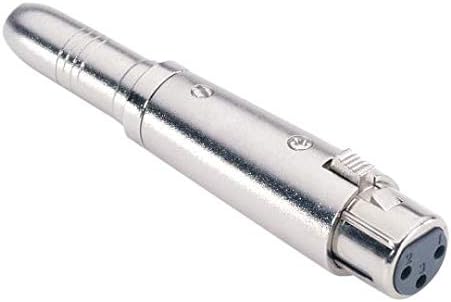
Also, I got a female 3.5 mm to female XLR connector so that I can use a better lavalier mic. The connector should be mini-XLR -- a full-size XLR is way too big. 

Solution:

What I do now is set the input volume in the terminal using pulseaudio (pacmd/pactl).

By default you can only set the input volume to 150%, but using the command line you can go as crazy as you like.

First identify the card index number: 

pacm list-sources|egrep "name|index"

    index: 26
   name: <alsa_input.usb-Samson_Technologies_Samson_RXD_wireless_receiver-00.analog-mono>
      alsa.name = "USB Audio"
      alsa.subdevice_name = "subdevice #0"
      alsa.card_name = "Samson RXD wireless receiver"
      alsa.long_card_name = "Samson Technologies Samson RXD wireless receiver at usb-0000:00:14.0-2, full sp"
      alsa.driver_name = "snd_usb_audio"
      device.vendor.name = "Samson Technologies Corp."
      device.product.name = "Samson RXD wireless receiver"
      device.profile.name = "analog-mono"
      alsa.mixer_name = "USB Mixer"
      device.icon_name = "audio-card-usb"

Then do (for index 26):

pactl set-source-volume 26 270%

Works great! Of course you can't touch the input slider in the pulseaudio GUI at this point. The next project is to change the pulseaudio source code to allow a higher max volume.

New microphone

I also bought a new microphone to use with the Samson: https://www.amazon.de/-/en/gp/product/B071937RZZ/ref=ppx_yo_dt_b_asin_title_o01_s00?ie=UTF8&psc=1

The sound is subjectively a lot better and I feel that it has better dynamic range, than with the stock microphone.

22 August 2020

664. Capturing sound when recording/streaming lectures/videos. A few devices.

 I'm interested in capturing sound, either during on-campus lectures, or when recording videos, or when lecturing over zoom.

Here are some of the devices that I own, and what I think:

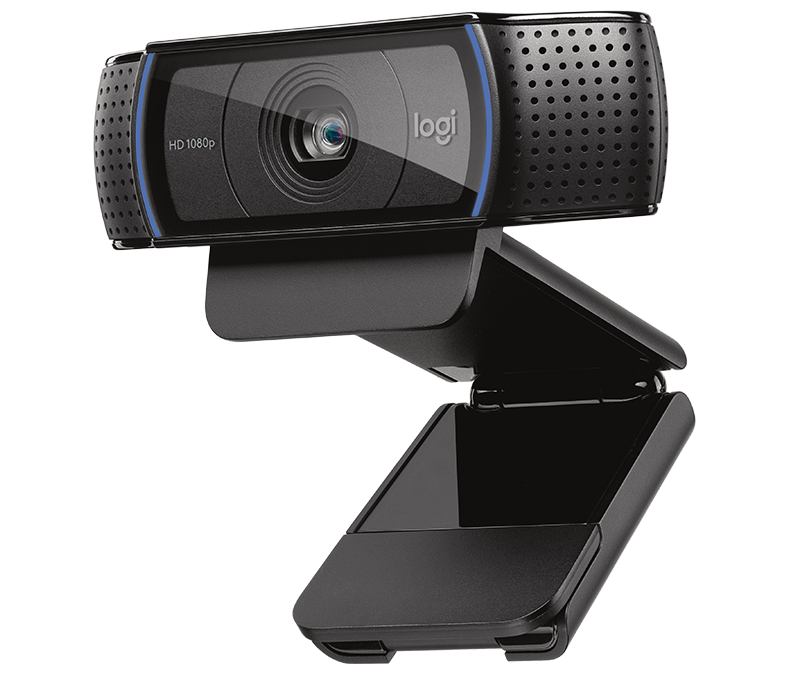
Logitech C920 webcam with integrated microphone:

C920 HD Pro Webcam 1

The sound is ... fine. Even at a few metres distance, actually.  Nothing like a proper, dedicated microphone, but way beyond e.g. the microphone you'd find in a laptop.

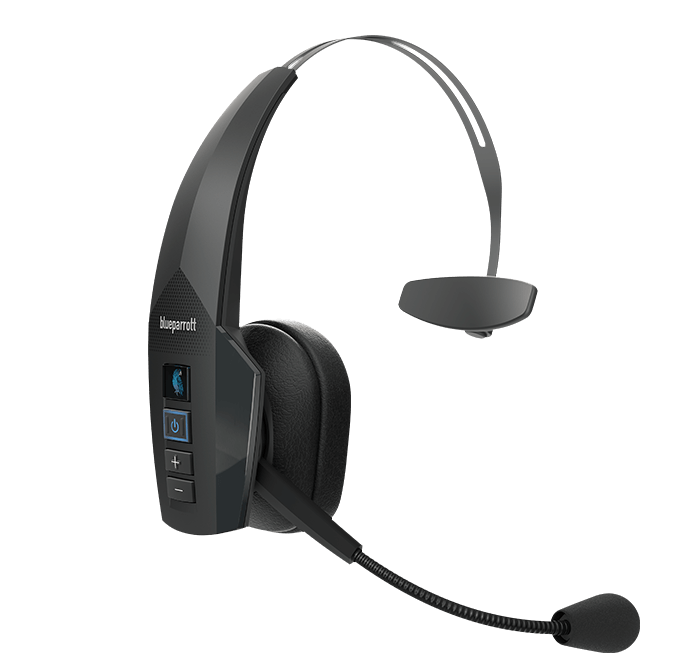
BlueParrot B350-XT bluetootch headset:

Jabra Evolve 75

It's absolutely bloody awful as a sound source. Absolutely fine for listening to music with, but as a headset for recording sound it stinks. The sound during phone calls is fine, but expectations aren't generally very high. Bloody expensive too.

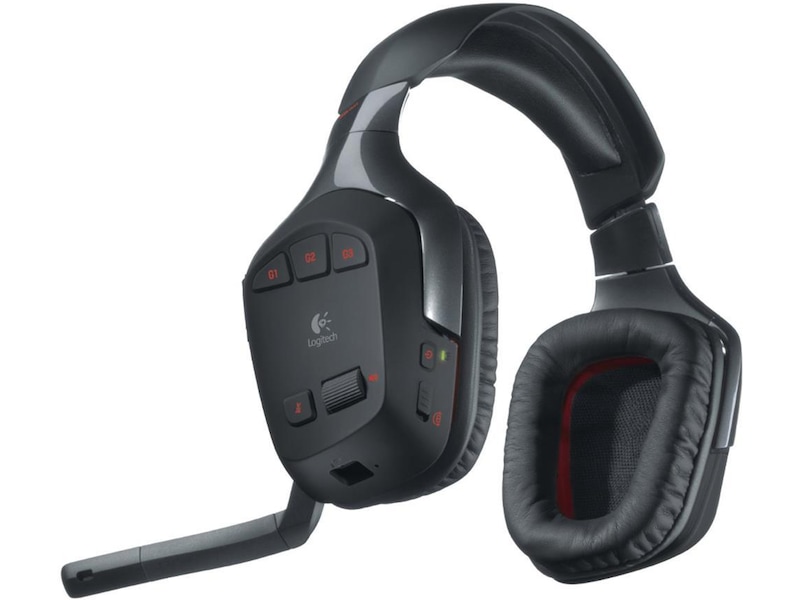
Logitech G930 wireless gaming headset:

Decent sound, but lacks dynamic range in terms of the microphone. Won't work well during a live lecture since it covers both ears. Great at keeping sound out, so very good as a headset for listening to music.

Samson XPD2 wireless lavalier microphone:

Have ordered, but not yet received. You can use it as a lav mic, but I'm going to experiment with using the Zoom H1n below as the input (via a 2x 3.5 mm cable plus a 3.55 mm female -> XLR converter), so that I can record on the H1n simultaneously as I live-stream. We'll see how it works out.

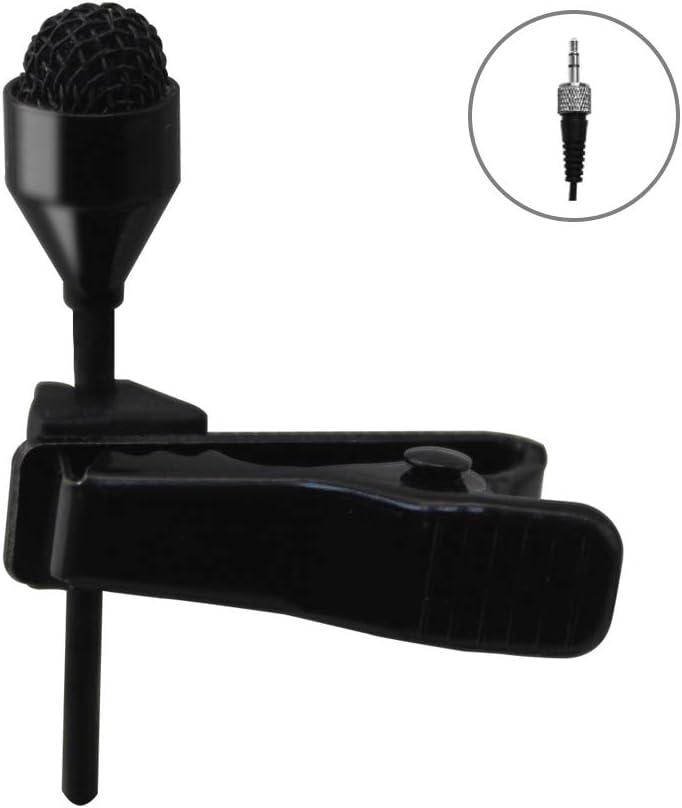
I also bought what is supposed to be a better Lavalier mic (J-082S 044) and a 3.5 mm/XLR adapter:


Blue Yeti microphone:

Yeti microphone image

This is my default microphone for video conferencing and recording videos. It's a great microphone. Cheaper than the crappy B350-XT above. Has several different pickup patterns. I love it. 

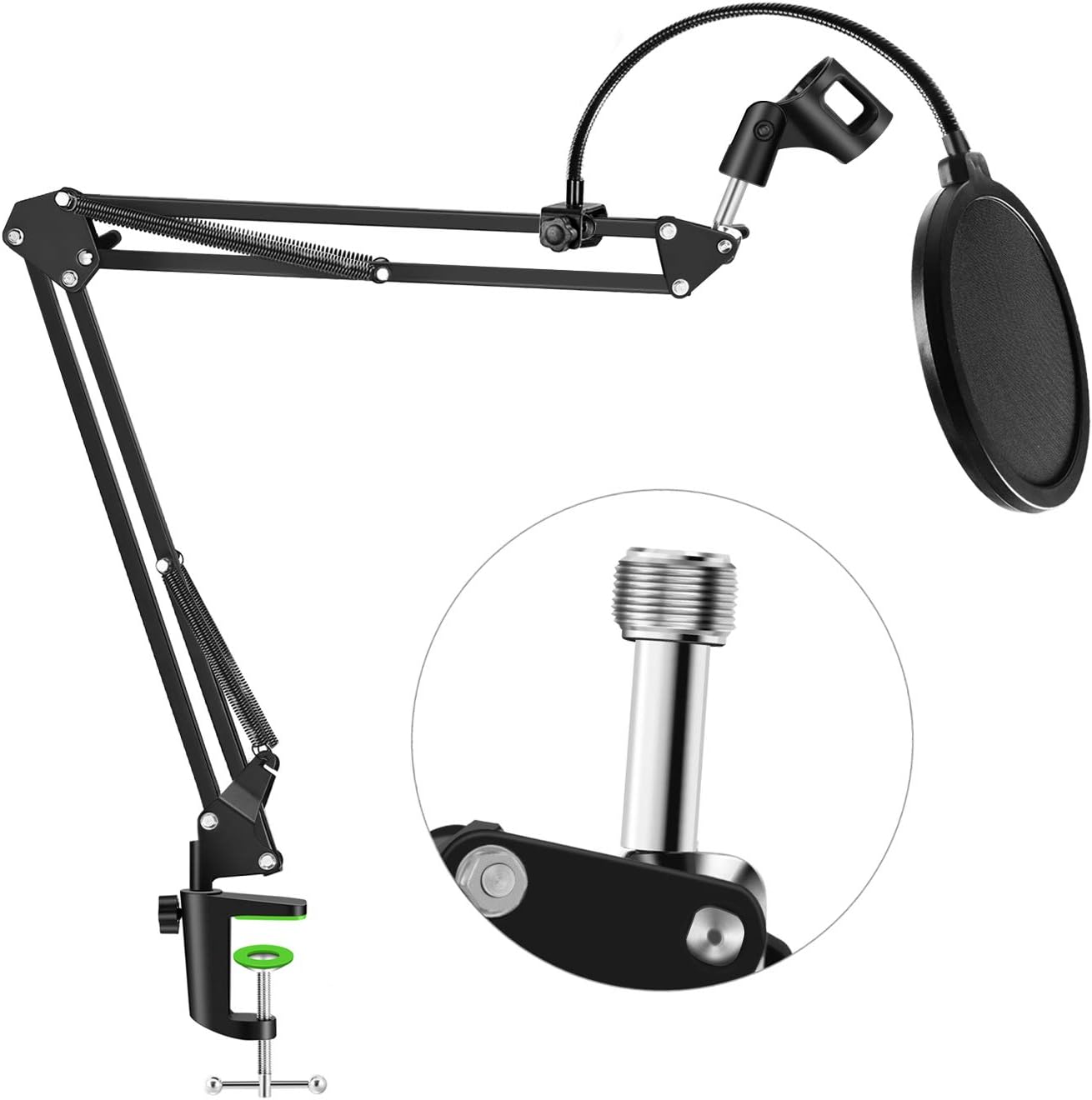
I'm using it together with a boom arm I got off of Amazon ('Neuma Professional Microphone Stand with Pop Protection').

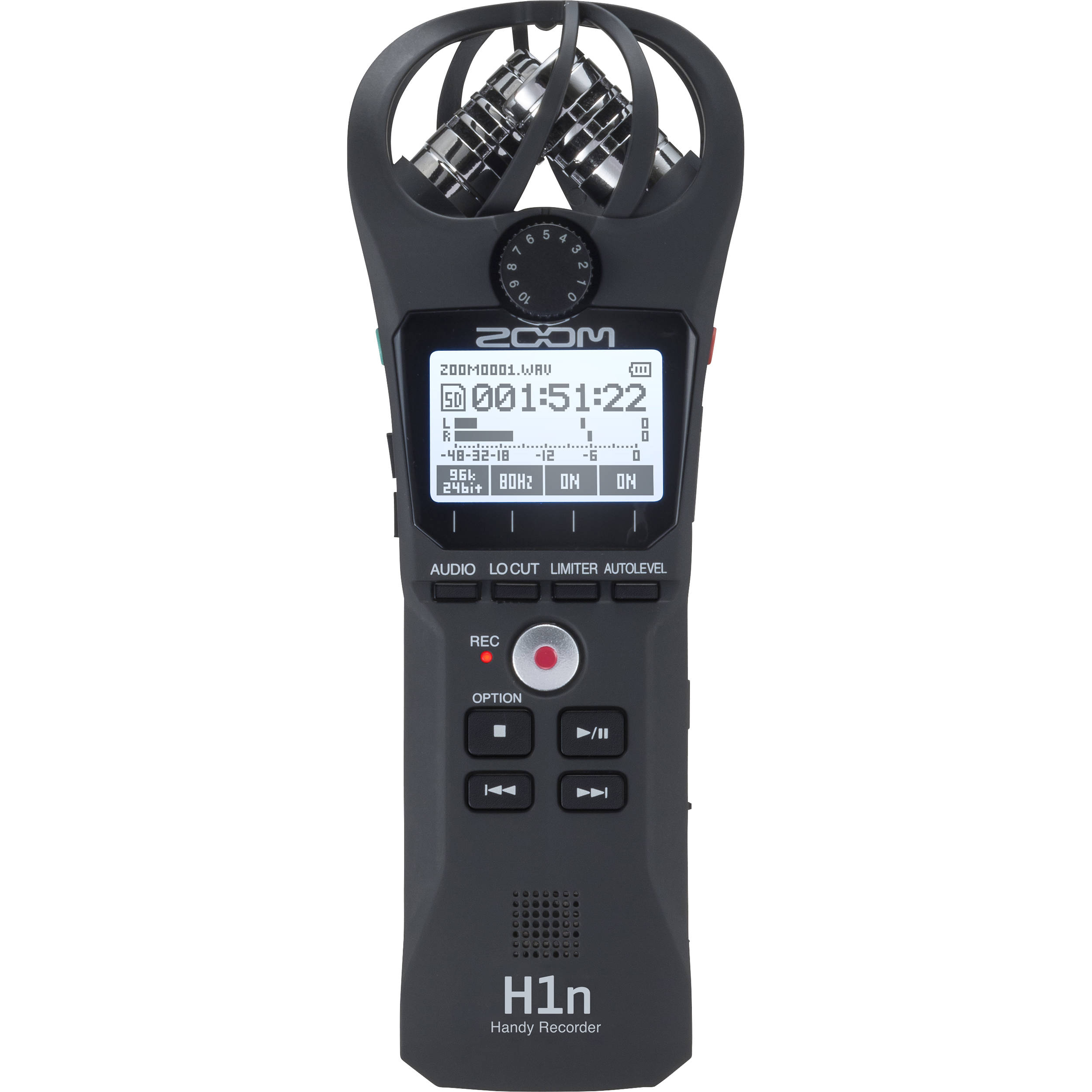
Zom Handy H1n sound recorder:
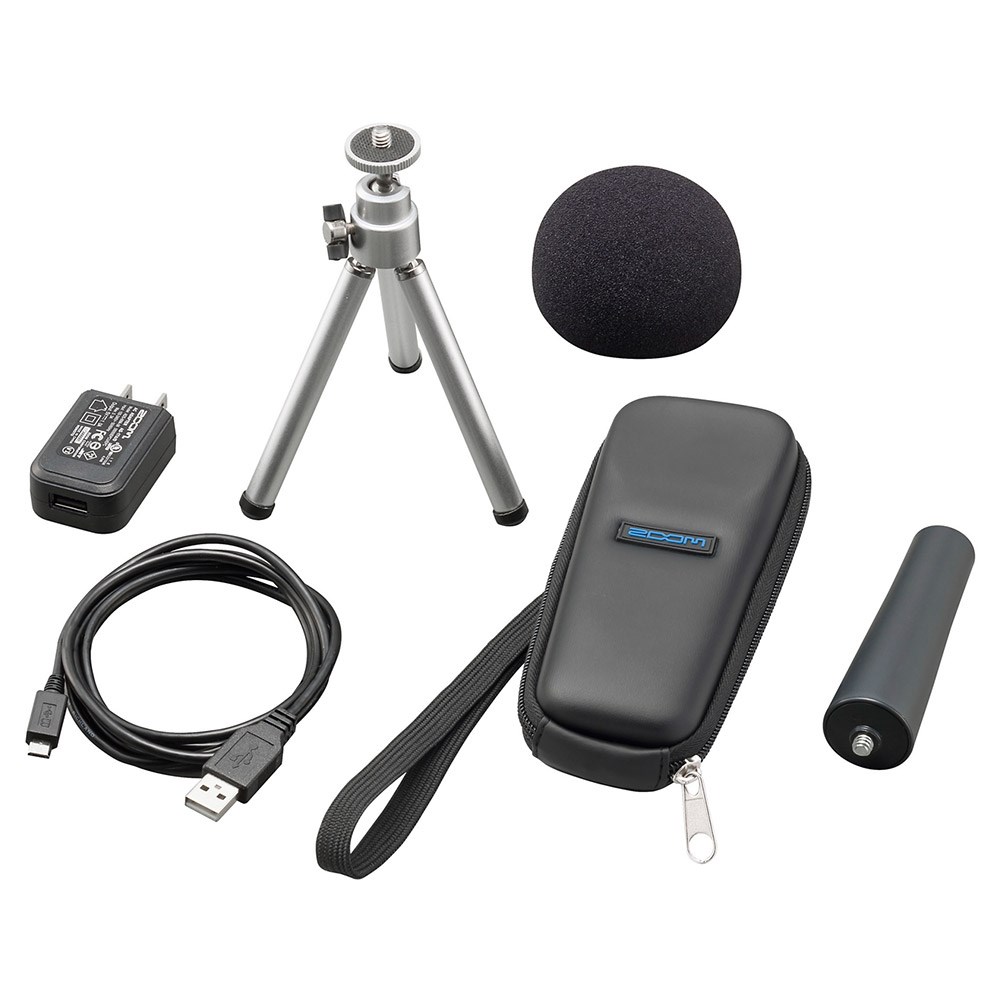
Zoom H1n 2-Input / 2-Track Portable Handy Recorder ZH1N B&HZoom APH1N Accessory Pack for H1N Handy Recorder | Recorders - Store DJ

This is my favoure toy though. It's small, light and have great sound. It's a stereo microphone when use as a sound recorded. You can also hook it up via USB (and have it powered via USB) and use it as a high-quality MONO microphone when recording videos or video conferencing. You can NOT record at the same time as you're using it as a USB microphone. I also got the Zoom APH 1 N/GE Accessories Bundle.

The portability makes it great for a number of uses. You can pass it between lecturers that want to record good-quality sound for lecture videos, and it's easy to take home (the Blue Yeti is a heavy beast).

You can also stick it the podium when giving a lecture and it will capture surprisingly good sound. You can record sound and replace webcam sound in post using e.g. KDENLive. You can attach a lavalier mic and use it to record sound during a live lecture and replace webcam sound in post. And more.

It has a 3.5 mm mic input and a 3.5 mm headphone output. I'm planning on experimenting with recording on the H1n at the same time as I've got the headphone output connected to the Samson (above) so that I can stream the sound to my laptop, and share it via zoo, since wireless technologies can be unstable in a lecture hall with lots of phones with wifi running (anywhere you have students). We'll see how it works out.


----------------
Once the audio is taken care of, I plan on using the following for the visual, and use OBS Studio to tie it all together.

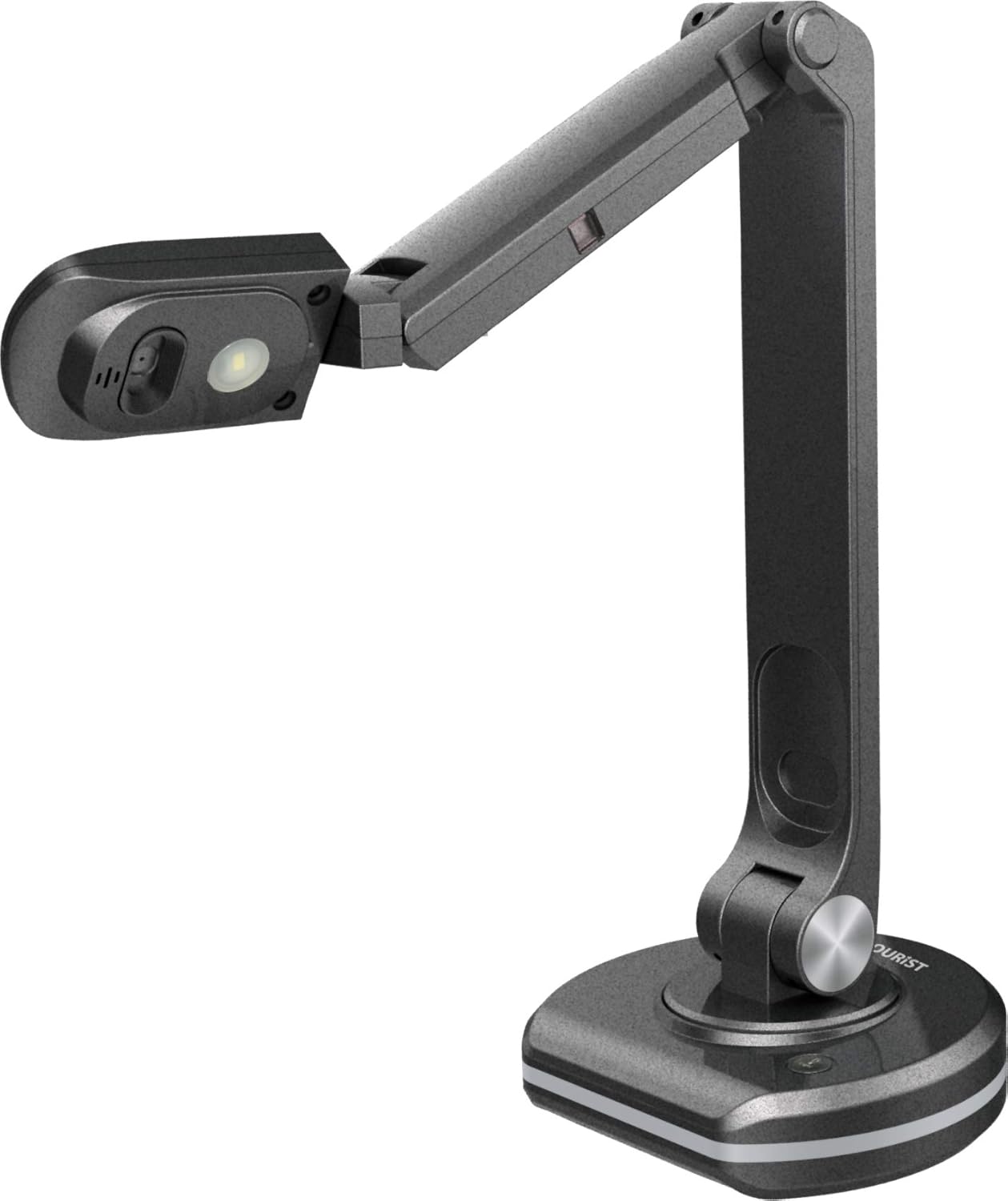
Document camera JOURIST DC80

H1n Audio Recorder front viewH1n Audio Recorder front viewWebcam Logitech C920

H1n Audio Recorder front viewC920 HD Pro Webcam 1


I've also ordered a chromakey set for fancier video production. Will be interesting to see how it turns out.

663. Giving a zoom + on-campus lecture (on linux, win and mac)

Preamble:

The uni admins aren't making it easy for us. 

I can handle doing everything on-campus, giving good, or occasionally very good, lectures using the white board and making it dynamic by actually engaging with the target, the students. I can often get them to share my excitement over the amazing stuff we're discussing (especially MO theory -- it's my favourite topic, and my favourite lecture). 

I can handle doing everything online if necessary, optimising my lectures to work through zoom or, even better, do away with lectures completely and rely on pre-recorded videos that take advantage of the video format, and use them to flip the class. We can then meet up on zoom to discuss the topics.

But what we're being asked to do is to focus on on-campus teaching, while making sure that everything is being streamed live online to avoid students from showing up to class when infectious.

Note that in our lecture halls we don't have computers. We're expected to bring our own, and we use single projectors. We also don't get any help from IT. Nothing is ever recorded here.

This is incredibly primitive and unprofessional compared to how things were done back in Australia.

What I will show here:

A few approaches to making a lecture work OK for both on-campus and online students simultaneously, and easily. The solutions assume that there's no competency, interest or support from IT.

1. The Basic
The easiest approach is to start zoom on your laptop, share a set of slides and stream it. You need to think about audio though, and there are a number of wireless solutions.

We've been told to use bluetooth headsets, but bluetooth has poor audio. Using 2.4 GHz wireless headsets, like my old logitech G930, gives better audio, but then you can't hear the local audience properly. 

My preferred solution is to use a Samson XPD2: 
http://www.samsontech.com/samson/products/wireless-systems/xpd-series/xpd2lav/

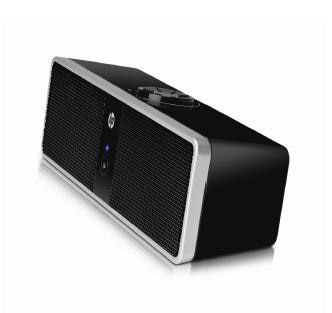
It's not a headset -- sound won't come out of it, but you can crank up the sound on your computer (or even use external speakers -- I have a very old HP USB speakers that are just about loud enough for a lecture hall (https://support.hp.com/ca-en/document/c02574017)
You can obviously switch input to webcam/document cam etc., but it's pretty basic.

If you have a document camera you can use this just like a webcam. Or you use e.g. https://gitlab.com/docphees/doccam to manage your document camera, and then use the window as input to zoom through share screen.

2. With a bit of Flair

This is a somewhat technical solution on linux, but I think it's easier on win/mac. What we can do is to set up a virtual webcam. The contents of the virtual webcam will be supplied by obs-studio

We then use obs-studio -- in studio mode no less -- to switch between different types of views.

virtual webcam: If you're on linux you need to install v4l2loopback (either as the dkms in the deb repo, or by a very simple compile), and if you're on linux you need the v4lsink. If you're on win/mac you can simply install the virtual camera plug-in for obs-studio.

On linux you need to create a virtual webcam:
sudo modprobe v4l2loopback video_nr=10 card_label="OBS Video Source" exclusive_caps=1

In obs-studio you then choose Tools/V4L2 Video Output and choose /dev/video10

obs-studio
Once that's up and running, set up at least two scenes in obs-studio, and pick studio mode.

I've set up one scene with a lion and a styracosaurus on a webcam, with the background chromakeyed out* over a molecular simulations video, and another one showing the guardian website, but one could've been the window with your slides, and another could be a document camera.


I've then set up ctrl+shift+alt+5 to switch between them:


You can even have different audio input depending on the scene. Useful if you're using wired microphones and moving between different stations in your lecture hall.

In zoom: now all you need to do is to pick the virtual webcam device as your input in zoom. There is a CPU overhead to using obs-studio, so expect the laptop to keep the fan on throughout the lecture.

*The chromakey background is the blue cover of an Office Depot notebook :)

21 August 2020

662. Mini-post: Getting a bluetooth headset to work on linux -- B350-XT

 I have a BlueParrot  B350-XT which is causing issues on linux. It pairs fine, and shows up as a sound device, but it won't actually play sound or record sound.


Looking at dmesg -T, I see

[Tue Aug 18 01:25:33 2020] Bluetooth: hci0: BCM: chip id 63
[Tue Aug 18 01:25:33 2020] Bluetooth: hci0: BCM: features 0x07
[Tue Aug 18 01:25:33 2020] Bluetooth: hci0: BCM20702A
[Tue Aug 18 01:25:33 2020] Bluetooth: hci0: BCM20702A1 (001.002.014) build 0000
[Tue Aug 18 01:25:33 2020] bluetooth hci0: firmware: failed to load brcm/BCM20702A1-050d-065a.hcd (-2)
[Tue Aug 18 01:25:33 2020] bluetooth hci0: Direct firmware load for brcm/BCM20702A1-050d-065a.hcd failed with error -2
[Tue Aug 18 01:25:33 2020] Bluetooth: hci0: BCM: Patch brcm/BCM20702A1-050d-065a.hcd not found


To solve this, unplug/turn off your headset. REMOVE/FORGET the device  so that you can re-pair it.


Download the hcd file to ~/Downloads, then
me@niobium:/lib$ sudo mkdir /lib/firmware/brcm
me@niobium:/lib$ sudo cp ~/Downloads/BCM20702A1-050d-065a.hcd /lib/firmware/brcm/

Now try again. 
Output from dmesg -T:
[Tue Aug 18 01:33:59 2020] Bluetooth: hci0: BCM: chip id 63
[Tue Aug 18 01:33:59 2020] Bluetooth: hci0: BCM: features 0x07
[Tue Aug 18 01:33:59 2020] Bluetooth: hci0: BCM20702A
[Tue Aug 18 01:33:59 2020] Bluetooth: hci0: BCM20702A1 (001.002.014) build 0000
[Tue Aug 18 01:33:59 2020] bluetooth hci0: firmware: direct-loading firmware brcm/BCM20702A1-050d-065a.hcd
[Tue Aug 18 01:33:59 2020] Bluetooth: hci0: BCM20702A1 (001.002.014) build 1482
[Tue Aug 18 01:33:59 2020] Bluetooth: hci0: Broadcom Bluetooth Device


09 July 2020

661. Teaching during the pandemic, part 4: making simple video lectures

This post is a bit different from the previous ones -- it simply shows what I've been doing for some time to create supporting videos for my students.


I record my voice using Audacity, and I use KDENLive to make the videos. I make slides using google docs.

Once you've got used to this you can make a bunch of short videos (aim at 6 minutes or so) in a single day.

Here's my work flow:

1. Create a script for the audio. 
I basically write down everything I'm going to say before I've made my slides. I then make the slides to match the script.

I use gedit to write my script.

2. Create the slides to match the audio
I use google slides:


I export each slide as a png:
3. Record the audio in audacity
Use a good microphone! I'm using a Blue Yeti, which is great.

NOTE: each audio file should correspond to a single slide, or part of a slide. Not the other way around. It makes step 4 easier, and helps if you need to redo the audio for a section.

Export the audio in a suitable format (e.g. flac)
4. Fire up KDENLive

Import your clips.

Add your audio to the Audio channel

Then add the png files to the video channel. Stretch the duration of each image file to match the duration of the audio.


Once you're done, render the video:

That's all!


Now you can combine the teaching posts to create something that works for you. Here are the links again:
* Mobile phone lavalier mic: http://verahill.blogspot.com/2020/07/658-teaching-during-pandemic-part-1-how.html
* Recording (several) cameras and syncing: http://verahill.blogspot.com/2020/07/659-teaching-during-pandemic-part-2.html
* Dealing with audio: http://verahill.blogspot.com/2020/07/660-teaching-in-pandemic-part-3-what.html

660. Teaching in the pandemic, part 3: What I'll be doing to capture live lectures. Audio.

I've looked at a few different solutions, but I've basically settled on recording video and audio separately. The downside of this is that I won't stream. The advantage is that I can do post-processing to add clearer pictures of slides etc.

The video part is pretty straight forward. See e.g. http://verahill.blogspot.com/2020/07/659-teaching-during-pandemic-part-2.html

When it comes to audio I've explored a range of solutions:

* Bluetooth headset -- this would've allowed me to stream, but the sound quality is just too poor with bluetooth (I tried Blueparrot B350-XT). For an example of how bad it can be, check out this corporate(!) video:
Advantage: wireless, can stream, only covers one ear
Disadvantage: Sound quality

* 2.4 GHz Wireless headset -- I tested Logitech G930. The sound quality is OK, but it covers both ears, and makes it hard/ uncomfortable to deal with a live audience.
Advantage: sound quality, wireless, can stream
Disadvantage: shuts out the live audience

* 'Normal' microphones -- I have a number of microphones, including Blue Yeti. Many of them are wired (USB), and none of them will work in capturing a moving (i.e. mobile) lecturer.
Advantage: superior audio -- when very close, streaming
Disadvantage: poor audio unless you're right in front of the mic

* Mobile phone lavalier mic -- See here for how to do that: http://verahill.blogspot.com/2020/07/658-teaching-during-pandemic-part-1-how.html.
Advantage: great sound, mobile, can potentially stream
Disadvantage: drains phone battery, can be tricky to set up LAN, if using receiving device (laptop) as hotspot you may not be able to connect to the internet (i.e. can't stream)

My chosen solution:
* Using a portable audio recorder (e.g. dictaphone) --  I've got a Zoom H1n, and a lavalier microphone. I love this microphone. It's lightweight, portable, not too expensive, and the internal XY microphone is great (to my ears). The amplifier for external mics is a bit weak, but it works for my purposes, especially if you post-process in Audacity. But that leaves you having to sync your video and your audio in post. I've already showed you how easy it is to do that here: http://verahill.blogspot.com/2020/07/659-teaching-during-pandemic-part-2.html

Note that you need to invest in a decent lavalier microphone as well. Also note that most these days seem to come with a 3.5 mm TRRS connector (good for mobile phones), and the Zoom needs 3.5 mm TRS (the old standard). Many of the cheap/affordable lavalier mics that you find on e.g. Amazon come with TRS/TRRS adapters, so it's not much of an issue.

Advantage: potentially great sound, great battery life
Disadvantage: you can't stream live, needs a lavalier microphone

So there we are -- I'll set up a single webcam to record video directly to my laptop. I'll capture the sound using it as well, but mostly to help me sync the audio later. I'll record my voice using a dictaphone and a lavalier microphone, post-process the sound in Audacity, then import video and audio in KDENLive, where I'll sync everything. I can then add pictures of my slides as well, and don't have to worry about the image quality during recording.